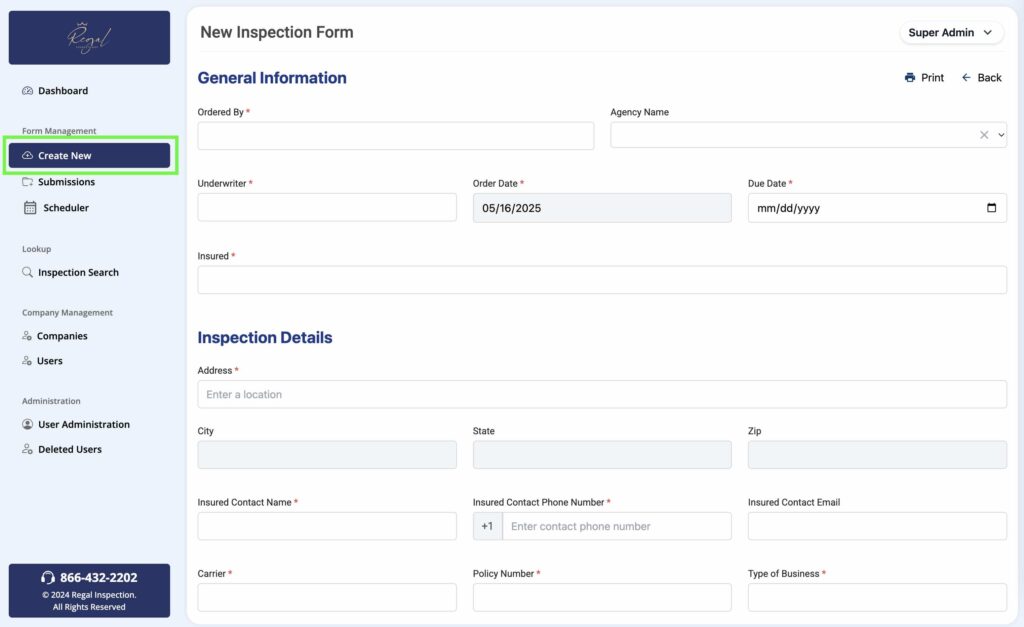
To submit a new inspection request, click the “Create New” button on the left panel. An inspection request form will open, allowing you to fill out the request details.
Required Fields
As you fill out the fields from top to bottom, any fields marked ar “required” will need to be entered before a request can be submitted.
Submission Confirmation
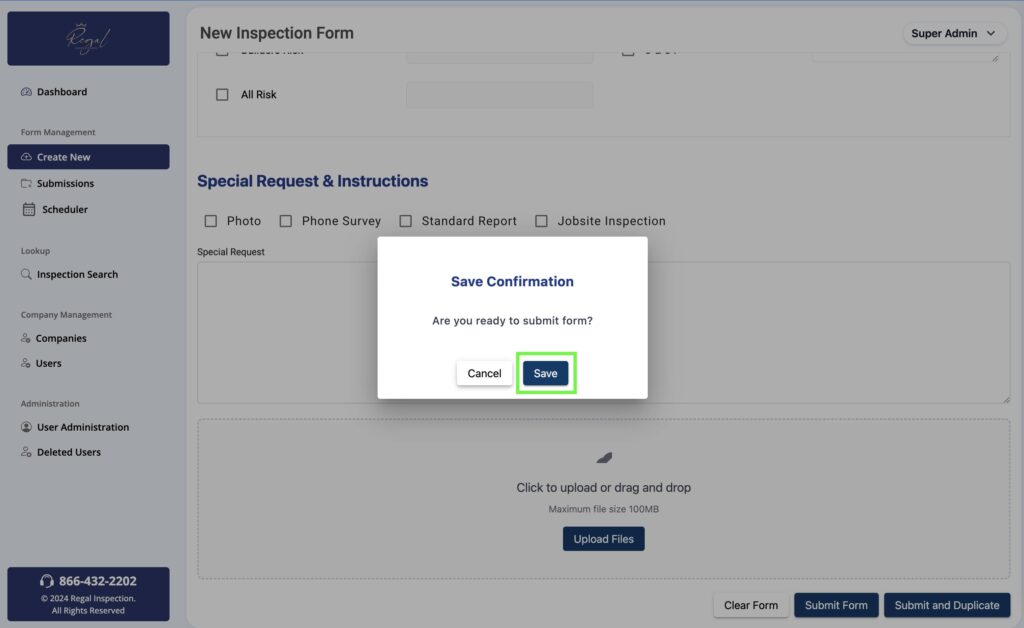
Once all required fields have been completed, when you click the “Submit” button at the bottom you will be prompted with a screen confirming you are ready to submit your new inspection request.
Request Form Duplication
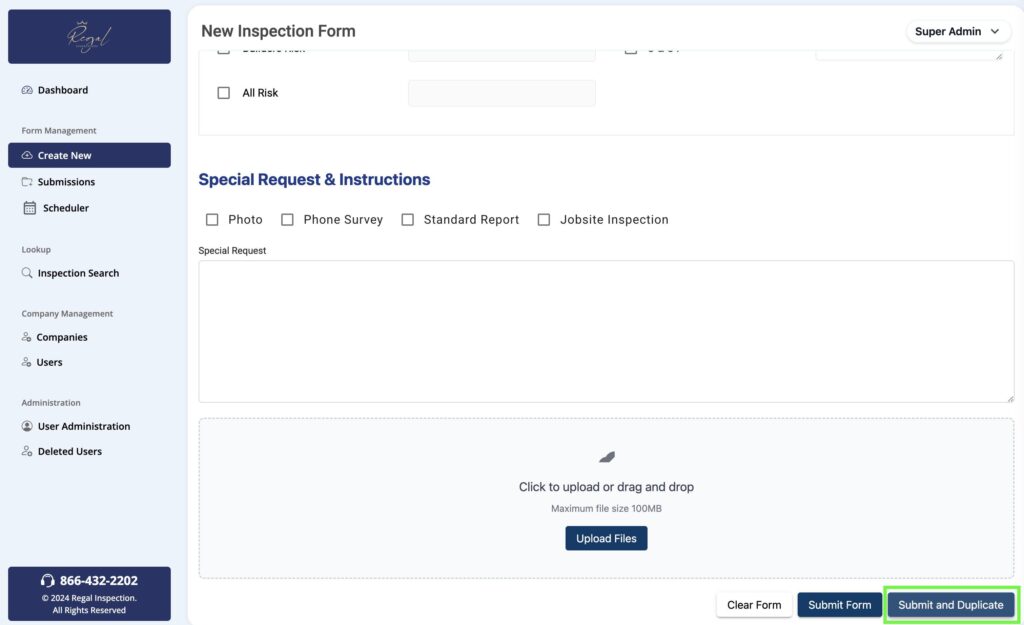
If you are requesting similar inspections and would like to save time filling out the form, you can choose the “Submit and Duplicate” button at the bottom. This will submit your inspection request and duplicate the form with all the previous data fields you entered, allowing you to modify as needed while saving you data entry time.
Note: If this insured has multiple locations, duplicate request and just change address. But if the properties are adjacent, add the second address in the special request box at the bottom.