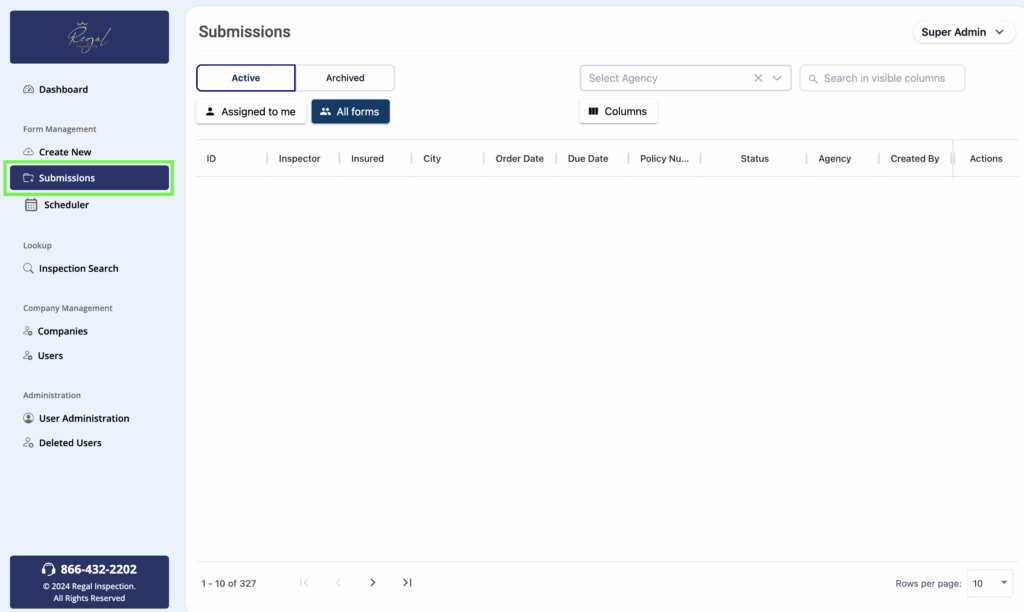
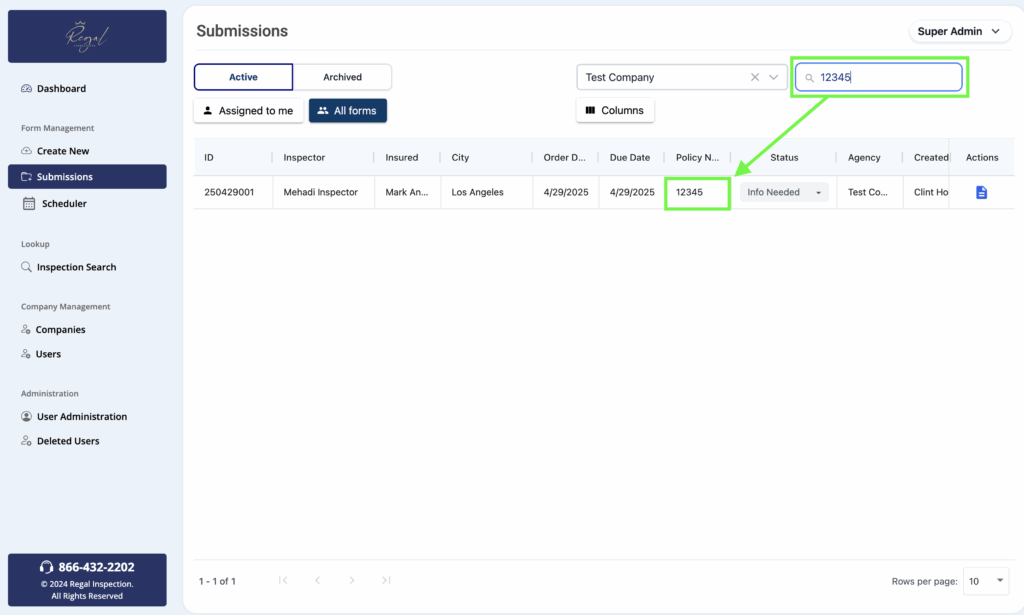
To view your submissions, click the “Submissions” button from the left side panel.
Viewing Active Vs Archived
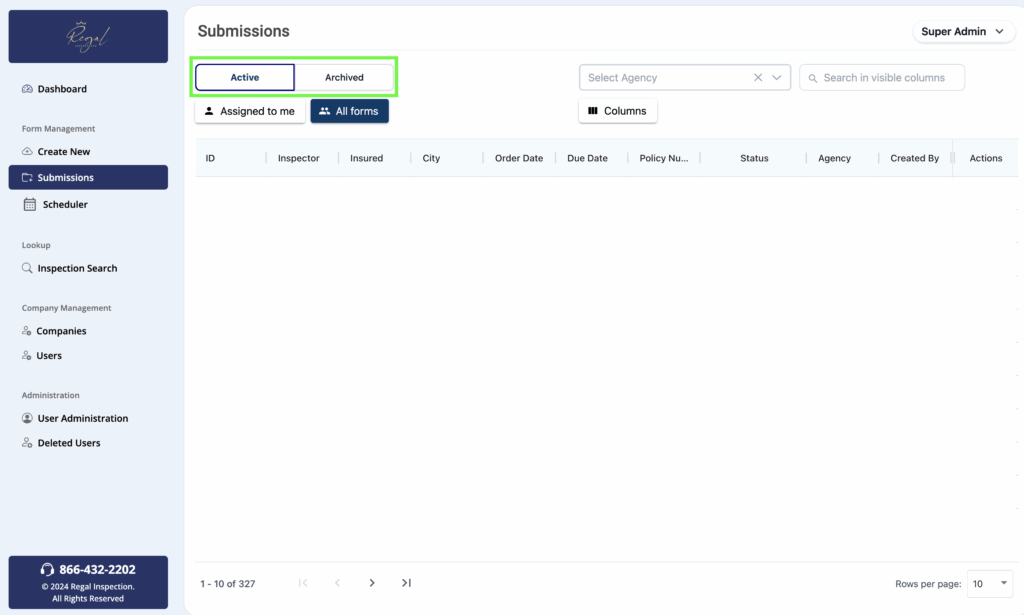
You can select “Active” submissions, which are currently in progress. Or, to see past submissions that have been completed, choose the “Archive” button at the top of your screen.
Searching For Submissions
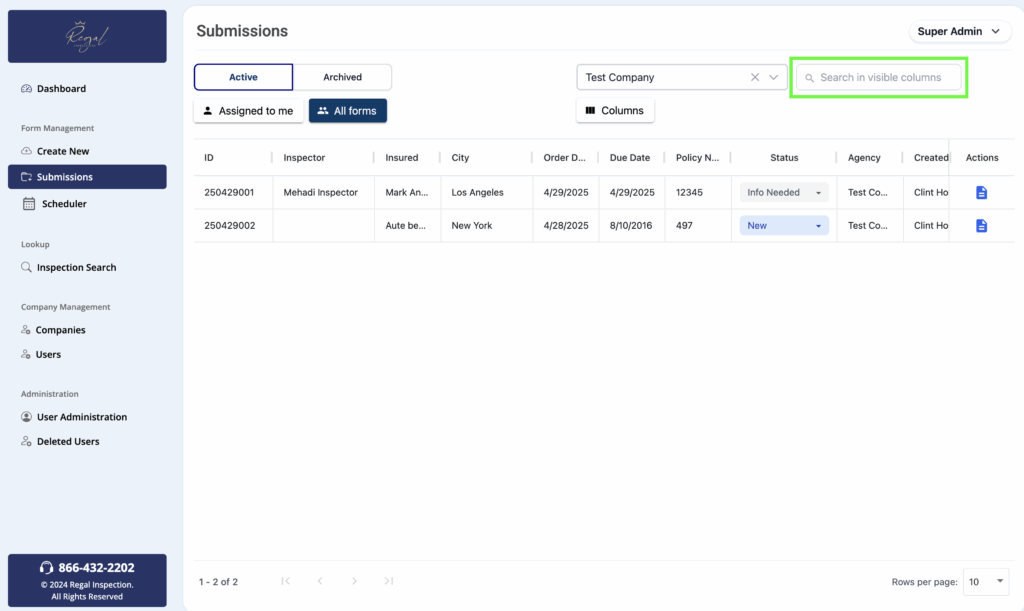
In the top right of your screen, there is a search box. This will allow you to enter search criteria based on the submission you are looking for. You can only search for data that is currently visible in the columns shown in your view.
How To Edit Search Columns
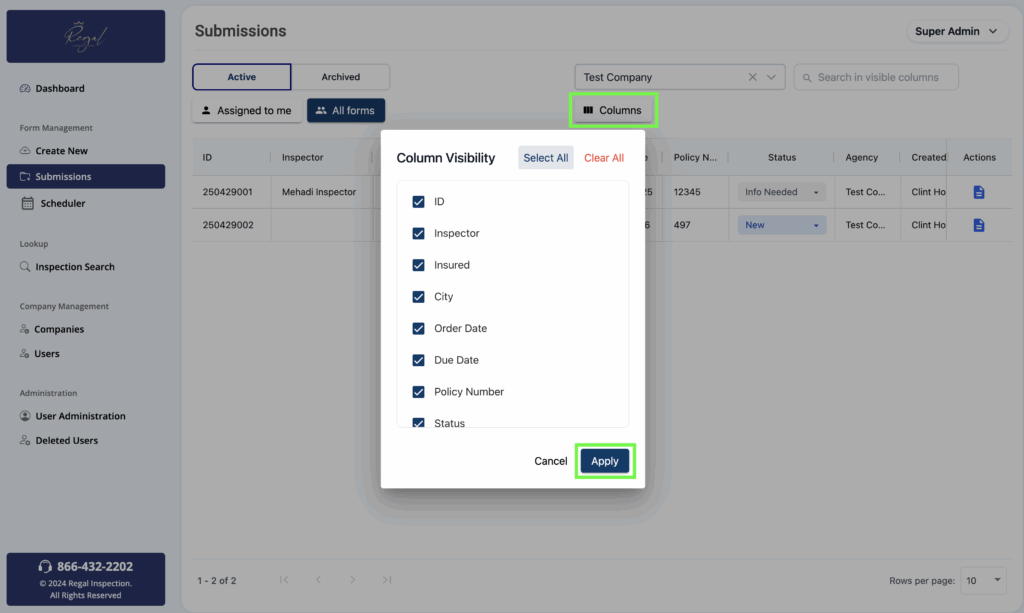
To adjust the specific columns in your view, click the “Columns” button from the menu. Next, a window will open allowing you to select the specific data fields you would like to see. Once you have adjusted the fields, click the “Apply” button to save your view.
Submission Search Results
Once your data columns have been adjusted to you preference, enter search criteria into the search box. You will notice the list of submissions will now show only those that contain the data you have entered. In this example, by searching for “12345”, only the submission containing that policy number now shows on the results list.